| How to Set
Up Your Email Settings:
Welcome to Leap's Email
System. Below are instructions on how to set up your new email
account with us. |
|
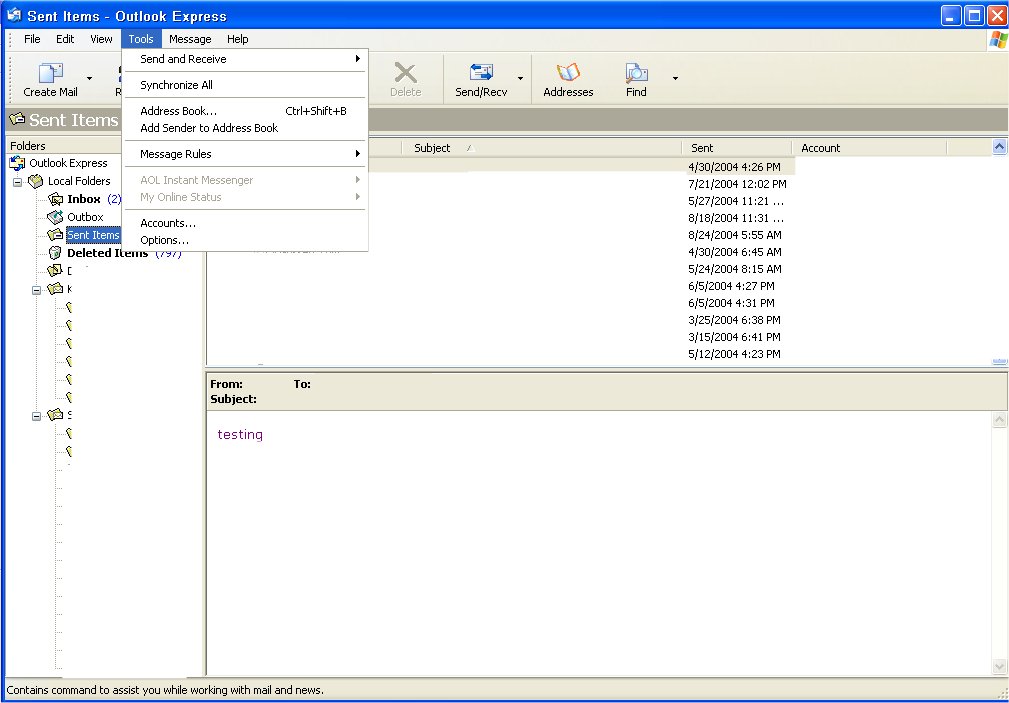
| 1. | Go to Outlook Express |
| 2. | Go to Tools -- which is located at the very top next to File Edit and View |
|
|
|
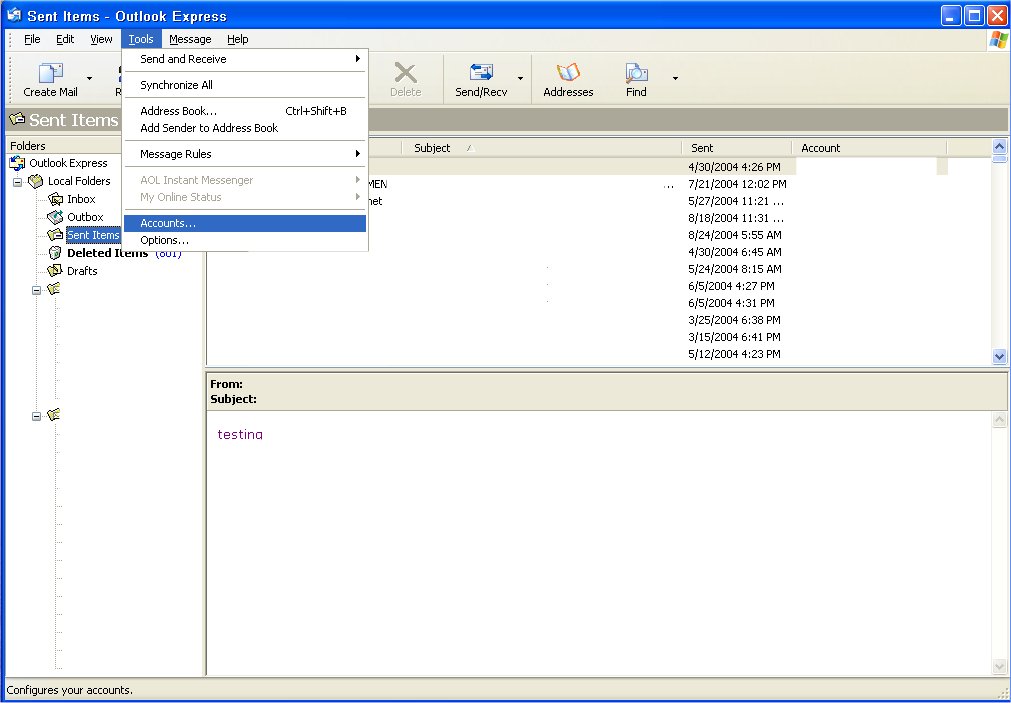
| 3. | Go to Accounts and click on it. |
|
|
|
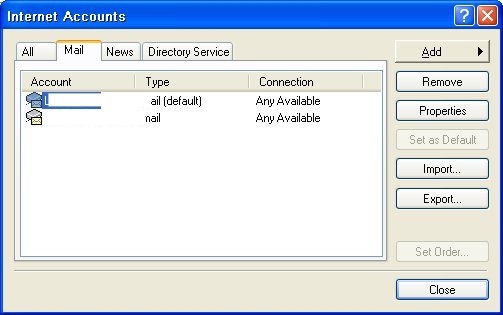
| 4. | Highlight your Email Account and click the Properties button. |
|
|
|
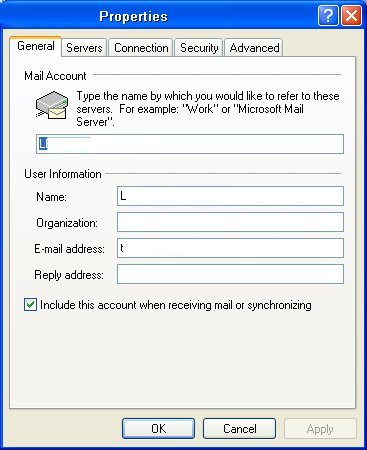
| 5. | Make sure that the General information such as the name you want to show up when you send email is correct as well as your email address. |
|
|
|
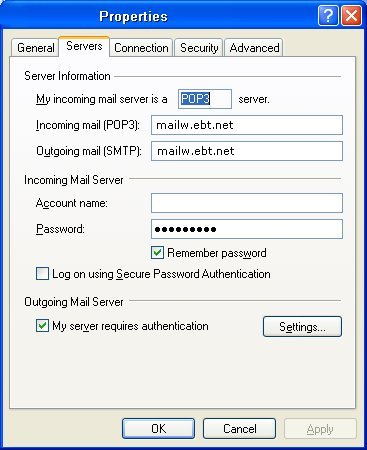
| 6. | Once that is correct go to the Server tab. |
|
|
|
| 7. | Change the Incoming Mail Server and Outgoing Mail Server to: mailw.ebt.net |
| 8. | Under the Incoming Mail
Server Heading change the account name to what you've set up. Example: JSmith |
| 9. | Change the Password to the
password you set up. Example: 123any -- all passwords must be alphanumeric (both letters and numbers and 6 digits long) |
| 10. | Make sure the box next to: Log On using Secure Password Authentication is not checked! |
| 11. | Under the Outgoing Mail
Server Heading click on the box next to: My Server Requires
Authentication. Again make sure that there is check mark in the box. |
|
|
|
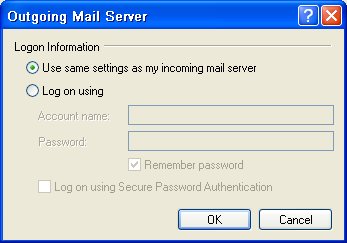
| 12. | Then Click on the Settings button under the Outgoing Mail Server header. |
| 13. | Under the Logon Information
make sure: Use Same Settings as my incoming mail server is CHECKED! Again make sure that the round button has a dot in it! |
| 14. | Then click OK |
| 15. | Click Apply at the bottom. |
| 16. | Then Click OK |
| 17. | You can exit to your Outlook Express. |
| 18. | You can now use your email. |